Everyone wants to show where they have been, and Facebook is still the place to do it. More than 3 billion people open Facebook every month, so your trip photos reach a huge audience fast. The problem is that Facebook has no single button labeled “travel map.” This guide shows you four reliable ways to post one anyway, from the fastest trick to the most detailed version.
What “Posting a Travel Map on Facebook” Actually Means
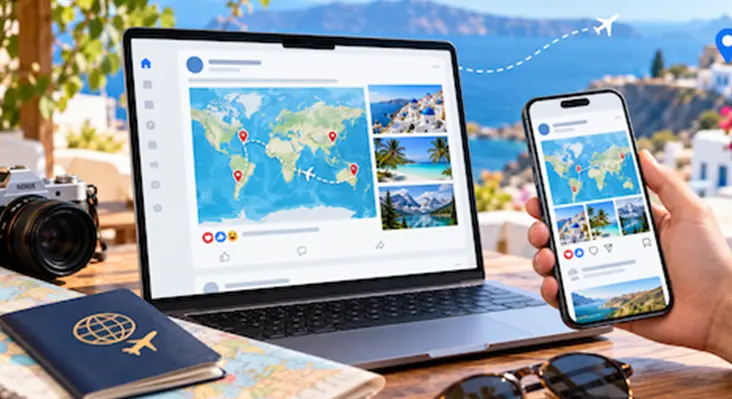
A travel map is any visual that pins the places you visited onto a map. On Facebook, you can create one in two broad ways. You either let Facebook build it from your check-ins, or you make your own map and post it as an image. Both work. The right choice depends on how much control you want.
Here is my honest take. Facebook’s built-in options are quick but limited. A custom map image looks far better and tells a cleaner story. If you care about how your trip looks on your profile, make your own.
Method 1: Build a Map From Your Check-Ins (Fastest)
Facebook quietly tracks every place you tag yourself in. Those check-ins stack up into a map on your profile. This is the lowest-effort way to show a travel trail.
- Open the Facebook app and tap What’s on your mind? to start a post.
- Tap Check in and search for the city, hotel, or landmark.
- Add a photo and a short caption, then post.
- Repeat at each stop on your trip.
- Visit your profile, open About, then Places You’ve Visited to see the collected map.
The downside is clear. The map is private-leaning and buried in your profile. Friends rarely scroll there. Use this method only if you already check in often.
Method 2: Post a Custom Map as a Photo (Best Looking)
This is the method I recommend. You build a map in a mapping tool, save it as an image, then post that image like any photo. It gives you full control over colors, pins, and routes.
- Open a free mapping tool and drop a pin on each place you visited.
- Connect the pins to draw your route if the tool allows it.
- Take a clean screenshot of the finished map.
- In Facebook, tap Photo/Video and upload that screenshot.
- Write a caption that names the stops and tag your travel companions.
This version looks like a real travel graphic, not a buried list. It also works for past trips, since you are drawing the map yourself rather than relying on old check-ins.
Method 3: Create a Location-Tagged Photo Album
Albums are underrated. A single album can hold dozens of photos, and each photo carries its own location tag. Facebook then links those locations together.
- Go to your profile and open Photos, then Create Album.
- Upload your trip photos in order.
- Click each photo and add the city or spot in the location field.
- Name the album after the trip and set your audience.
- Publish, then share the album link to your timeline.
This keeps the whole journey in one tidy place. It is the best option when photos matter more than the map graphic itself.
Method 4: Share a Map Link in a Post
You can also paste a shareable map link straight into a status update. Facebook pulls a preview card, and friends tap through to an interactive map. Write a line or two of context above the link so people know what they are opening. This is the most interactive option, though the preview image is smaller than a full photo upload.
Make Your Travel Map Post Stand Out
The map is only half the post. The caption carries the story. Keep it short, specific, and warm.
- Name your stops. “Lisbon, Seville, Tangier” beats “amazing trip.”
- Add one number. Days traveled or miles covered gives scale.
- Tag companions. Tags expand your reach to their friends too.
- Post while it is fresh. Same-week posts get more reactions.
Captions also live or die on tone. If you want your shorthand to read clearly, it helps to know what IG means in a caption before you use it in front of family.
Posting Your Map While You Are Still Abroad
The best travel map posts go up in real time, not weeks later. For that you need data the moment you land. A travel eSIM solves this without hunting for local SIM cards or paying roaming fees. I keep one active so I can check in and upload maps from the road, and a Holafly international travel eSIM installs before you even leave home. That way your map goes live from the airport, not your living room.
Frequently Asked Questions
Does Facebook have a built-in travel map feature?
Not a dedicated one. Facebook builds a places map from your check-ins, but it does not offer a single “travel map” button. Most people create a custom map image instead.
Can I post a travel map from past trips?
Yes. Build the map yourself in a mapping tool and post it as a photo. You do not need old check-ins, so trips from years ago work fine.
Why is my check-in map not showing on my profile?
Check your privacy settings first. If check-ins are set to “Only Me,” the map stays hidden. Change the audience to Friends or Public, then refresh.
What size should my map image be?
Aim for a landscape image around 1200 by 630 pixels. That ratio fills the Facebook feed cleanly and avoids awkward cropping.
Can I add a travel map to a Facebook group?
Yes. Posting works the same inside a group. Upload the map image or paste a map link in the group’s post box, just as you would on your own timeline.
Also Read
- Innate vs. Enate Homophones: Spelling & Definition
- NSFW Meaning in Text: Usage, Examples & More
- Inclosed vs Enclosed: What’s the Real Difference?