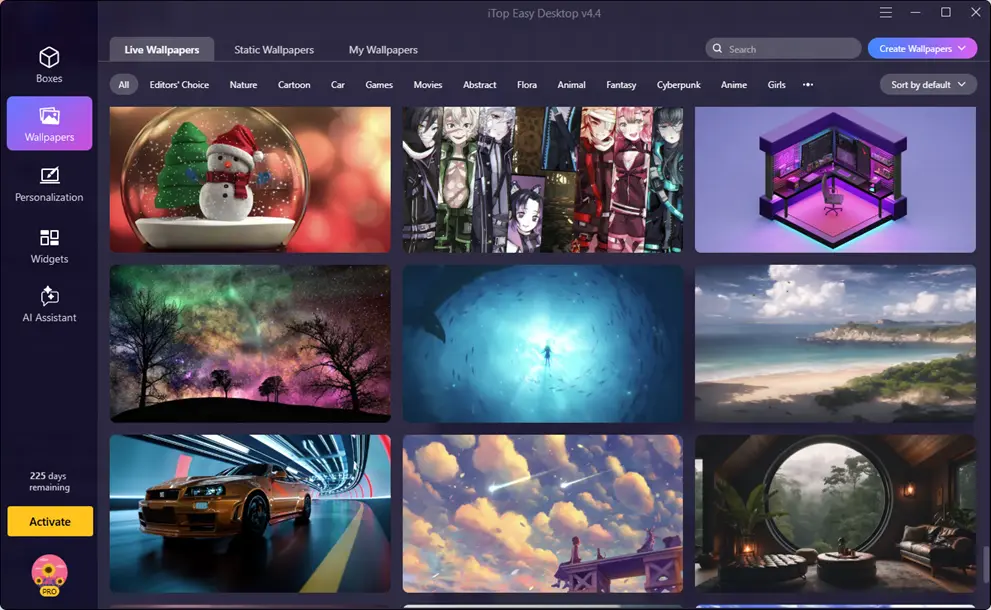
used to think a useful Windows desktop had to look clean and organized. Over time, I realized that appearance was only one part of it. What mattered more to me was how quickly I could get to the things I used every day. I work with documents, screenshots, folders, browser downloads, and different applications. So, I needed a desktop that could keep these things within reach without making the screen feel crowded.
That is why I started looking at iTop Easy Desktop. Instead of treating the desktop as a place where I simply keep shortcuts, I wanted to turn it into a more useful part of my daily workflow.
What I Wanted From My Desktop?
My main goal was practicality. I wanted frequently used files to be easy to reach. However, I didn’t want every file sitting in front of me. I also wanted a simple way to separate work items from personal files and keep temporary downloads from taking over the screen.
Another thing I noticed was that some small tasks took more steps than they should. If I wanted to make a quick note, capture part of my screen, or check a reminder, I usually had to open another application.The same was true when I needed help drafting a message, summarizing information, or translating text.
iTop Easy Desktop gave me several of these functions from the desktop itself. Its main interface brings together Boxes, Wallpapers, Personalization, Widgets, and an AI Assistant.
Features That Helped Me Build a Practical Setup
Here are the features that helped me organize my desktop and make everyday tasks easier to manage.
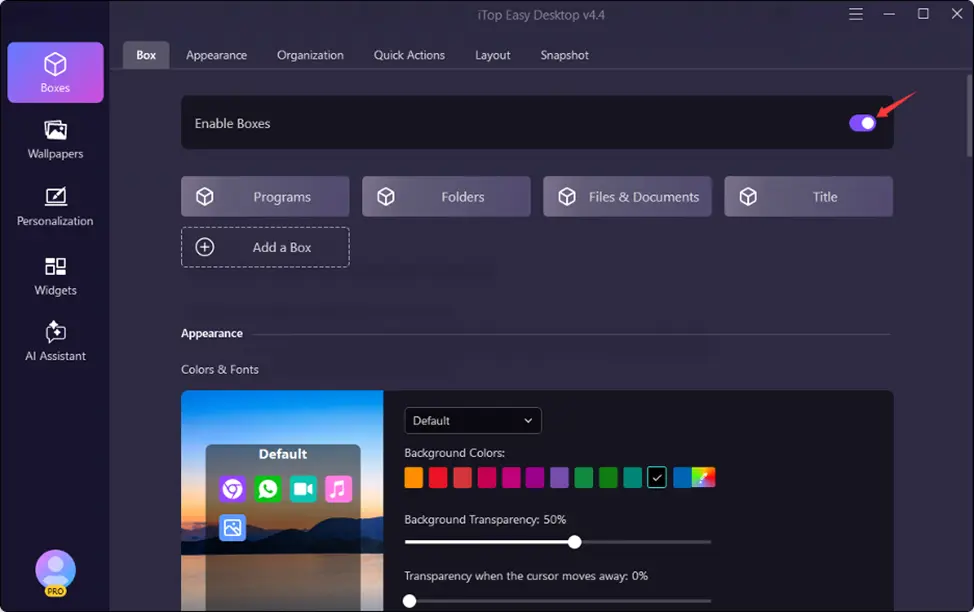
Auto-Organization Gave Me a Starting Point
The first feature I found useful was one-click auto-organization. iTop Easy Desktop can sort items into groups such as Documents, Images, Applications, and Folders instead of manually moving every desktop icon. This helped me get a basic structure in place before making my own changes.
Boxes Let Me Arrange Things Around My Routine
After the automatic sorting, I created my own Boxes. I used separate areas for the things I regularly work with instead of keeping everything in one long row of icons. iTop Easy Desktop lets me create boxes, rename them, adjust their appearance, and create organization rules for the items inside them.
Search and Folder Portal Reduced Extra Clicking
I don’t always know where I saved something, especially when I am working on several projects. The built-in search gives me a faster way to locate a file or folder by name. Folder Portal is useful for folders I open regularly because it provides direct access to their contents from the desktop. iTop describes it as working like a small File Explorer.
Quick Screenshot Was Handy for My Work
Screenshots are part of my regular workflow, so having a screenshot tool nearby was useful.
iTop Easy Desktop supports screenshots of selected areas, full screens, current windows, and scrolling windows through its Screenshot feature. The Quick Tools widget can also provide direct access to core functions such as Screenshot.
Virtual Desktop Pet
PawPal adds a fun little companion to the desktop, giving the setup a more lively feel while I work. I liked having the animated pet around, although the current character selection is still fairly limited.
Auto Save Layouts Gave Me a Safety Net
I also liked having a way to keep my desktop arrangement. Auto Save Layouts works as a snapshot or backup for the desktop setup, so I can restore an earlier arrangement if I make changes that don’t work for me.
That makes experimenting with the layout feel less risky.
Steps I Followed to Build My Setup
Here are the steps I followed
Install and Start iTop Easy Desktop
I first downloaded the latest version and installed it on my Windows computer. The official manual currently lists Windows 10 and above on 64-bit systems as supported.
After installation, the welcome screen gives two starting choices: Quick Start or Customize. Quick Start automatically sorts desktop items using preset rules, while Customize arranges items on a grid and lets me create boxes myself.
Organize My Main Files
I used the organization tools to separate the files and shortcuts I actually needed.
I didn’t try to create a box for everything. I focused on the categories that matched my normal computer use.
Add the Tools I Use Often
Next, I enabled the widgets that made sense for me. I kept things such as iNotes, Schedule, and iPomodoro available because they fit into my daily work. I also kept Quick Tools nearby for fast access to functions like Screenshot.
I added the Chat AI widget as well. Having AI writing, summarizing, and translation tools within reach made it easier to use them when a task called for a little extra help.
Save the Layout
Once I was happy with the arrangement, I used the snapshot option to keep the setup. From there, I could make small changes without feeling like I had to rebuild everything if I didn’t like the result.
Final Thoughts
For me, creating a practical Windows desktop was less about making it look perfect and more about reducing unnecessary steps. I wanted my important files nearby, my frequently used folders easy to open, and small everyday tools available without constantly switching between applications.
iTop Easy Desktop helped me build that kind of setup through Boxes, search, Folder Portal, widgets, screenshots, Auto Save Layouts, and other small desktop controls. The result is a desktop that feels more useful instead of simply looking organized.
This desktop organizer software helped me bring these elements together. Boxes, search, Folder Portal, widgets, screenshots, and Auto Save Layouts made the desktop easier to manage, while the built-in AI Assistant added another layer of convenience for writing, summarizing, and translating.
What I liked most was that the AI features didn’t replace the traditional desktop tools. They complemented them. The result is a Windows desktop that feels more useful, with both organization and AI assistance available as part of my everyday workflow.
Also Read
- Innate vs. Enate Homophones: Spelling & Definition
- NSFW Meaning in Text: Usage, Examples & More
- Inclosed vs Enclosed: What’s the Real Difference?