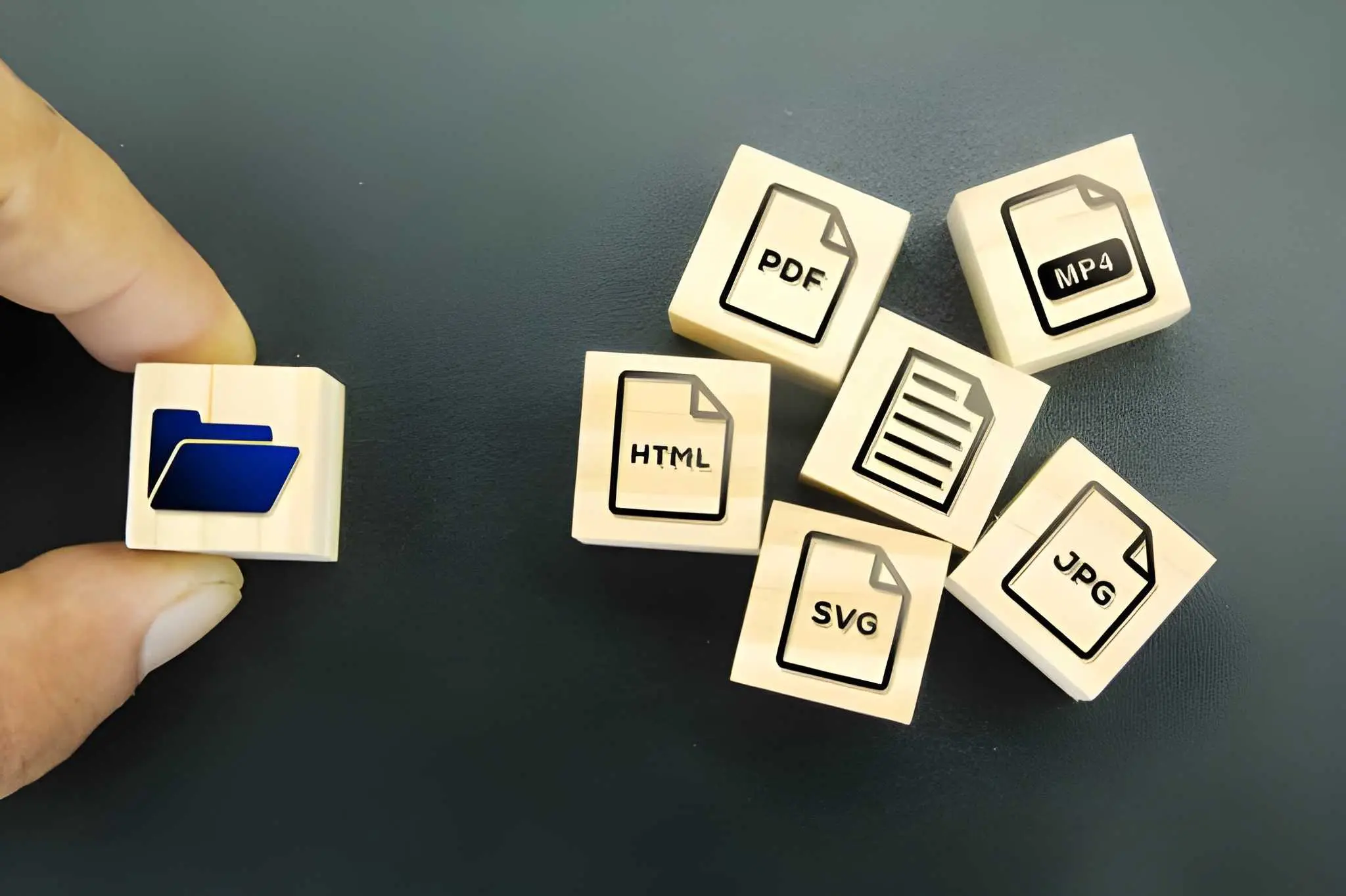
Online applications for university admission, jobs, visas and government forms all have one thing in common, they accept only some file types. If the file is in the wrong format, the upload button simply shows invalid file type and the form does not move ahead. This happened to me also during my masters application, when the portal did not accept the photos of my degree because my iPhone had saved them in HEIC.
In such cases the file is not wrong, only the format is. A convertor from Convertio can change a HEIC photo into JPG or a Word CV into PDF in the browser, and after that the portal accepts the file. But knowing the right format is only half of the work, the size, the quality and the naming of the files also matter, so this guide explains what most portals expect and how to prepare each document properly.
| [ PERSON PREPARING A RESUME — insert here ]Download (free, HD): https://unsplash.com/photos/2A7M49St1JACredit: Marielle Ursua (@heyimmarielle_03) on Unsplash, free Unsplash LicenseAlt text: Person preparing a CV on a laptop before an online applicationCaption: Convert the CV to PDF and check it once before uploadingFormat: Save as WebP before uploading |
Table of Contents
- Why portals accept only a few formats
- Formats which portals usually ask for
- How to prepare your CV
- Photos and signatures
- Scanned degrees and transcripts
- File size limits
- Common mistakes to avoid
- Final words
Why Portals Accept Only a Few Formats
The people who check applications may open thousands of files in a few days, and they cannot install new software for every applicant. So the portal is set to allow only two or three formats, mostly PDF for documents and JPG or PNG for pictures, and it blocks the rest at the time of upload. This also keeps the files safe, because some file types can carry harmful code.
PDF is the most common choice for documents. According to Wikipedia, PDF was developed by Adobe in 1993 to present documents, including text and images, in a manner independent of application software, hardware and operating systems. In practice this means a PDF looks almost the same on every computer, although very unusual fonts or special formatting can still change a little.
| Quick rule: CV and documents in PDF, photo and signature in JPG or PNG, and read the size limit under the upload button before you convert anything. |
Formats Which Portals Usually Ask For
The table below shows the general pattern. Every portal has its own rules, so always read the instructions on the form itself.
| Document | Format portals usually ask for | Common problem |
|---|---|---|
| CV or resume | Layout or fonts change when sent as DOCX | |
| Passport size photo | JPG or PNG | iPhone saves it as HEIC |
| Signature | JPG or PNG | Photo taken in bad light |
| Degree and transcripts | One combined PDF | Uploaded as separate phone photos |
| Cover letter | Page breaks move on another computer |
How to Prepare Your CV
A CV should be uploaded in PDF unless the portal clearly asks for Word. A DOCX file can open differently on another computer, for example the page breaks can move or a heading can show in another font if the reviewer does not have the same font installed. When I sent my CV as DOCX once, a friend in HR told me it was opening on three pages on his laptop instead of two.
To avoid this, convert the DOCX into PDF and then open the PDF once before uploading. Check that the bullet points are in place, the spacing is correct and there is no empty last page, which sometimes appears when the Word file has extra lines at the end. Also give the file a clear name like Ali Khan CV 2026, because a file named cv new final 3 does not look professional to the person who downloads it.
| [ REVIEWER READING A RESUME — insert here ]Download (free, HD): https://unsplash.com/photos/a-woman-is-reading-a-resume-at-a-table-9si2noVCVH8Credit: Resume Genius (@resumegenius) on Unsplash, free Unsplash LicenseAlt text: Woman reading a printed resume at a tableCaption: A clear PDF and a proper file name make a better first impression on the reviewerFormat: Save as WebP before uploading |
Photos and Signatures
Many portals ask for the passport size photo and the signature in JPG or PNG. iPhones save pictures in HEIC by default, so a photo taken on an iPhone usually needs to be converted to JPG before uploading. Android phones mostly save in JPG already, so this problem is less common there.
Some portals also have rules about the photo itself, like a white or light background, the face in the centre and no filters. For the signature, sign with a dark pen on plain white paper and take the picture in daylight, so the lines are clear and there are no shadows.
Scanned Degrees and Transcripts
For degrees, transcripts and ID copies, many universities ask for one combined PDF instead of separate pictures. The easiest way is to use a scanner app on the phone, which saves several pages directly into one PDF. Normal photos also work if they are converted into PDF later, but the scanner apps usually crop and straighten the pages automatically.
The quality of the scan matters a lot. A dark, blurry or tilted page is hard to read and can make the reviewer doubt the document. When my first transcript photo came out dark, my father looked at it and said it looks fake, so I scanned it again near a window.
File Size Limits
Many forms have a size limit, for example 1 MB or 2 MB for documents and sometimes only 100 KB to 200 KB for photos. Converting a file does not always make it smaller. HEIC to JPG or DOCX to PDF can make the file bigger or smaller depending on the image size and compression settings. If the portal has a very strict limit, you may need to reduce the photo dimensions or compress the PDF as a separate step.
| Tip: check the size of every file before the last day. Portals often become slow near the deadline, and a rejected file at that time can create a lot of stress. |
Common Mistakes to Avoid
- Uploading a Word file when PDF is asked, or even when Word is allowed, because the layout can change on the other side.
- Saving the same JPG photo again and again after cropping or editing. Each new save with compression can reduce the quality a little, so always edit from the original photo.
- Uploading phone photos of documents without checking light, angle and clarity.
- Not opening the converted file once before uploading.
- Forgetting the size limit and finding out only when the upload fails.
Final Words
Most upload problems in online applications come from format and size, not from the documents themselves. Before the application season starts, it helps to keep one folder ready with your CV in PDF, a JPG photo, a clear signature and one combined PDF of your degree and transcripts. Read the instructions of each portal, check every file once after converting, and the upload part becomes the quickest step of the whole form.
Also Read
- https://grammarthat.com/slug-ai-video-editor-write-readable-captions/
https://grammarthat.com/jqk-casino-review-examining-its-game-selection-and-mobile-experience/
https://grammarthat.com/which-cyber-security-course-is-best-for-working-professionals-in-bengaluru/