A Windows PC can develop hardware problems without the hardware itself being faulty. Sometimes the real issue is the driver controlling that device. A missing driver can stop Windows from recognizing a component, while an outdated one may cause crashes, connection problems, or poor performance. A damaged driver can be even harder to deal with because the device may work one moment and fail the next.
The good news is that driver problems can often be fixed without replacing the hardware. The first step is to understand what type of driver problem you are dealing with. Then a driver updater such as Driver Booster provides another way to deal with these issues. It scans the PC, finds drivers that need attention, and lets you manage updates from one place.
Common Driver Problems on Windows
Not all driver problems look the same. A missing driver can cause Windows to show an unknown device or prevent hardware from working at all. This can happen after reinstalling Windows or connecting new hardware.
An outdated driver is slightly different. The device may still work, but you could experience crashes, connection drops, sound problems, display issues, or compatibility troubles with newer software.
A broken or corrupted driver can cause even more unpredictable behavior. A device may work normally one day and start failing after an update, software change, or system issue.
Before replacing a piece of hardware, checking its driver is a useful troubleshooting step.
Driver Booster for Handling Driver Problems
Driver Booster is designed to make driver management easier on Windows PCs. Instead of searching for each driver separately, you can scan the computer and review the drivers that need attention in one place.
The latest Driver Booster 14 includes a database of more than 23 million drivers. It also introduces multi-version scanning, which can show different driver versions instead of treating the newest release as the only option.
This can be useful when a new driver does not work well with your particular hardware. Driver Booster 14 can identify both the latest and a more stable driver version, allowing you to choose the one you want to use.
The software can also help with other driver-related situations, including offline PCs and missing game components.
Key Features of Driver Booster
Driver Booster comes with a range of amazing features including
23 Million+ Driver Database
Driver Booster 14 has access to more than 23 million drivers. This gives it coverage across a wide range of hardware, including graphics cards, network adapters, audio devices, chipsets, printers, and other components.
A large driver database is particularly useful when Windows cannot find a suitable driver on its own.
Multi-Version Driver Scanning
Driver Booster 14 can look at multiple available versions of a driver. It can identify the newest version as well as a more stable version.
This is helpful when you are dealing with a driver problem and do not want to automatically install the newest release. You can review the available options and select the version that fits your situation.
Driver Backup and Restore
Installing a driver can sometimes create a new problem instead of fixing an old one. Driver Booster provides backup and restore functions that give you a way back if an update does not work as expected.
It can also create a system restore point before making driver changes. This gives you an additional recovery option if Windows starts behaving differently after an installation.
Offline Driver Updater
A missing network driver can create a frustrating situation because you need an internet connection to download the driver, but the driver itself may be the reason you cannot get online.
Driver Booster includes an Offline Driver Updater for situations like this. It can help users obtain and install required drivers on computers with limited or no internet access.
Fix Missing Game DLLs
Some game errors are connected to missing DLL files rather than the graphics driver itself. Driver Booster 14 includes a Fix Missing Game DLLs feature that checks more than 680 DLLs across over 60 game components.
It supports components associated with DirectX, Visual C++ Redistributable, XAudio, OpenAL, PhysX, and other gaming technologies.
4 Simple Steps to Handle Driver Problems
Here are simple steps to follow to use Driver Booster to handle driver problems
Run a Scan
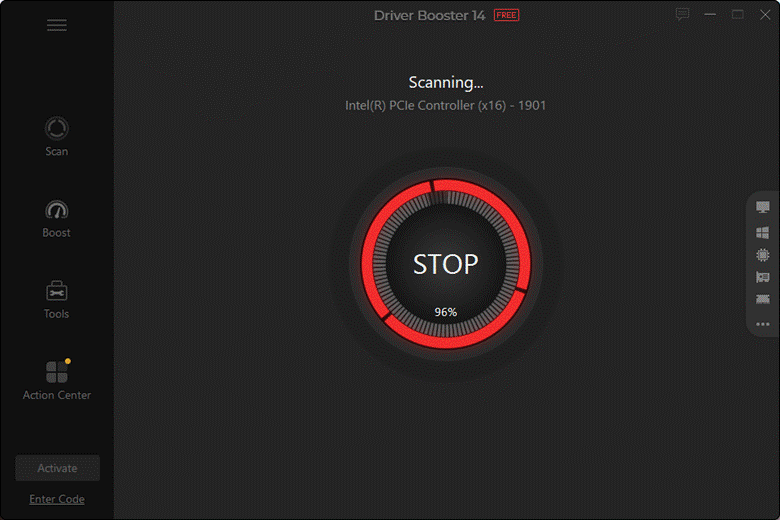
Open Driver Booster and start a scan. The software checks your installed hardware and looks for outdated, missing, or problematic drivers.
Check the Results
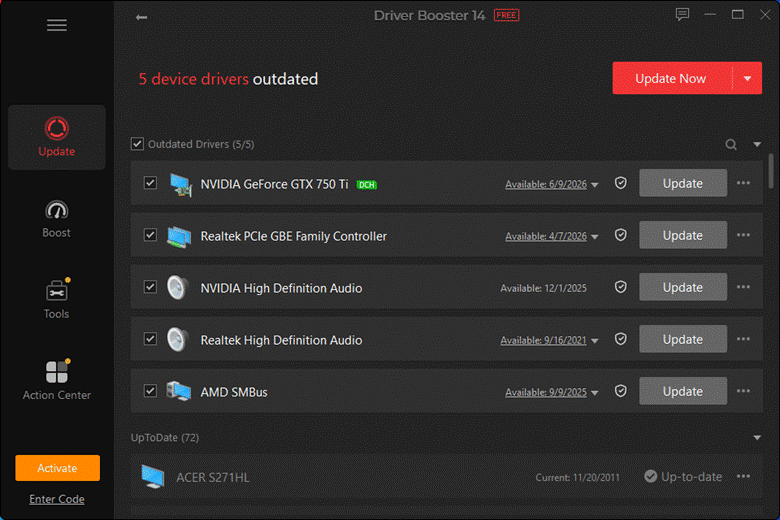
Review the scan results and identify the drivers connected to the problem you are experiencing. For example, if your sound has stopped working, pay attention to the audio-related drivers.
Do not rush into updating every driver. Look through the results first and decide which ones actually need attention.
Choose a Driver Version
If Driver Booster shows more than one available version, compare the options. You can choose the latest version or a more stable version based on what your PC needs.
If the current driver started causing problems after an update, having different versions available can also make it easier to try another release.
Install and Test
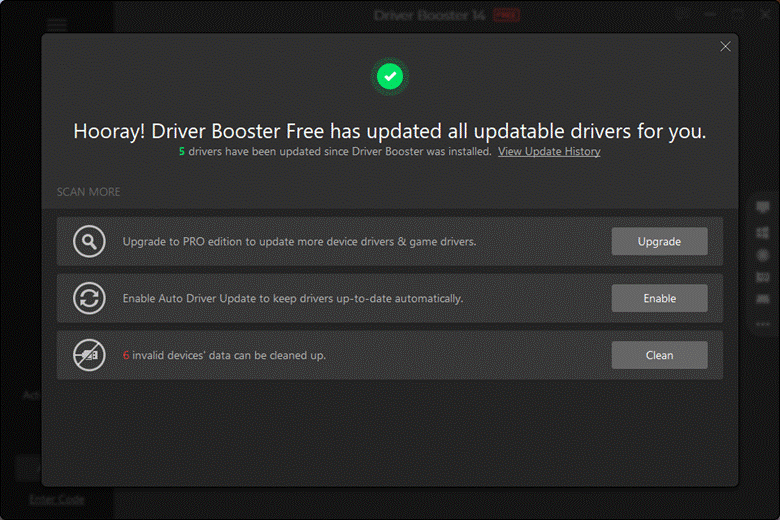
Install the selected driver and restart your PC if required. Once Windows starts again, test the affected device.
Check your internet connection if you updated a network driver, play some audio after updating a sound driver, or launch the affected game after dealing with a gaming-related issue. If the problem remains, you can use the backup or restore options and try another solution.
Final Thoughts
Missing, outdated, and broken drivers can cause problems that look like hardware failures. Before replacing a device or spending time searching through different manufacturer websites, it is worth checking the driver behind it.
Driver Booster offers a simpler way to find and manage these drivers. The key is to treat driver updates as part of troubleshooting rather than simply installing every new driver available. This approach can save time when Windows hardware starts behaving unexpectedly.
Read more: https://grammarthat.com/custom-hot-dog-boxes-for-food-brands-that-sell-more/
https://grammarthat.com/impatient-vs-inpatient/